
Waveform View
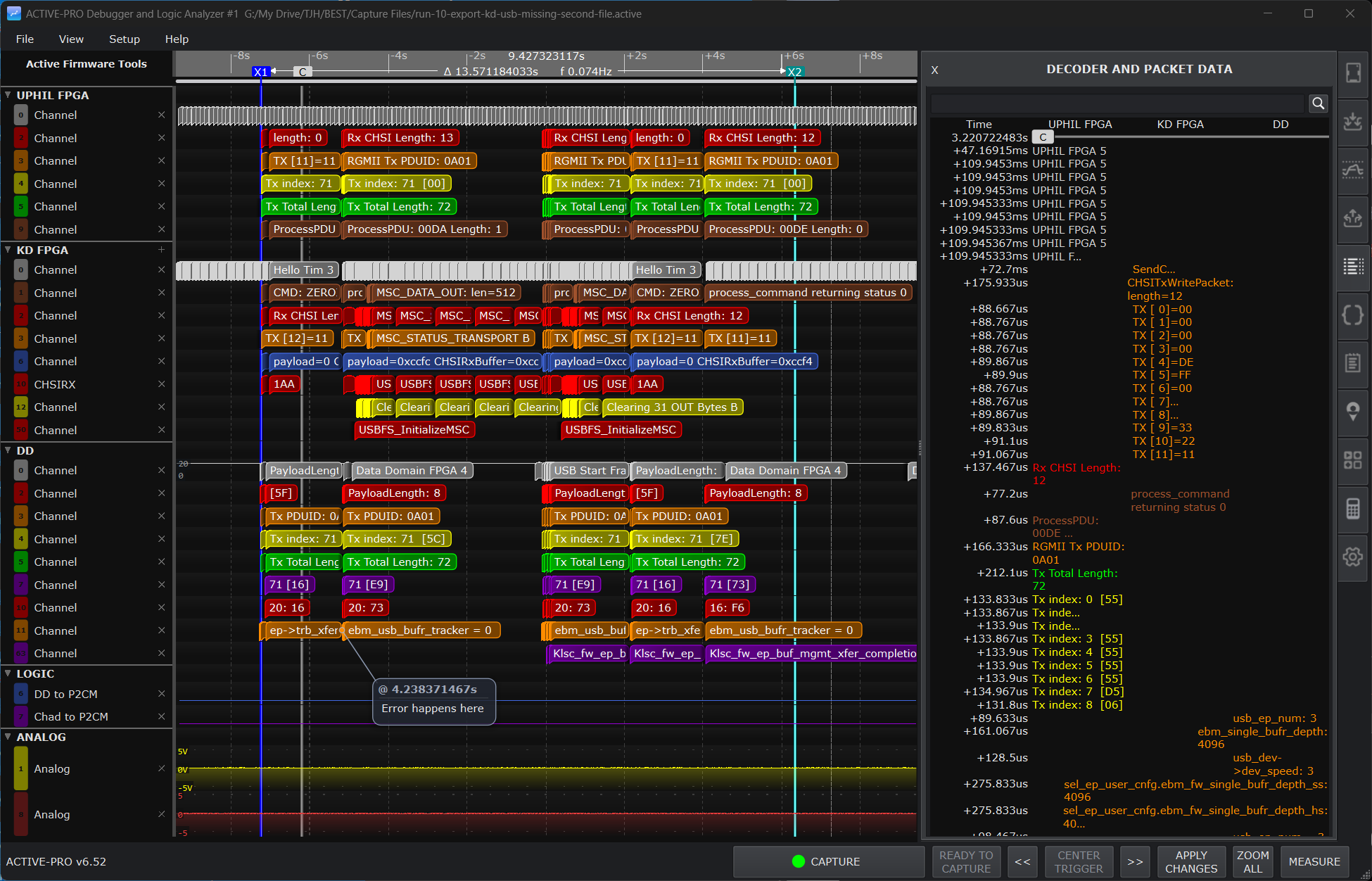
Waveform View
The waveform view is where you spend most of your time in the application. This chapter covers everything you can do with the waveform: zooming, panning, placing cursors, making measurements, navigating decoded data, and stepping between recorded triggers.
Wave Lines
Once you have a trace captured you can navigate around the trace a number of ways.
To view the entire trace in a single window, press the ZOOM ALL button. This will scale the data so it all fits from the first sample to the last on the timeline.
To zoom in or out on the data, hover over the waveforms and use the mouse scroll wheel or scroll up and down with two fingers on the trackpad.
To pan the waveforms to the left or right, click and drag the waveforms with the mouse or scroll sideways with two fingers on the trackpad.
It is much quicker to navigate by zooming out and back in than to pan long distances.
You can reorder the wavelines by clicking and dragging them by the left tab. You can rename the wavelines by selecting and entering new text.
Timeline Ruler
The horizontal timeline ruler at the top of the waveform area shows absolute time. The time units and scale adjust automatically as you zoom: the ruler might show seconds when zoomed out and nanoseconds when zoomed in.
The X1 and X2 cursor markers appear as vertical lines running the full height of the waveform area. The Current Cursor (labeled C) follows the mouse as you hover.
When the trigger system is active, a small rounded trigger status badge floats over the ruler showing READY (green) while the trigger is armed, briefly TRIGGERED (red) when the trigger fires, and Stopping in Ns or Stopping in N (cyan) while a post-trigger stop condition counts down. See Buffer & Triggers.
The Current Cursor
The Current Cursor follows your mouse as you hover over the waveform area. It shows your current position in time without committing to a measurement.
For analog channels, the name column on the left shows the signal voltage at the Current Cursor position and updates continuously as the cursor moves.
Anchoring the list: A single left-click on the waveform anchors the decoded-data list so it begins at the clicked time, and pauses live auto-scroll. The Current Cursor itself continues to follow the mouse as you hover.
Modifying Wavelines
Each line on the display is called a Waveline. Wavelines can be modified to your liking so that you see the data you need to solve your problem. You can delete, add, move, or reconfigure any waveline.
To Delete a Waveline from the screen, press the little X near the signal name. This will remove the waveline from the screen. Once a waveline is deleted from the screen, a small + appears in that section's header.
To Show Deleted Wavelines, click the + icon in the header of that section. All deleted wavelines will be restored.
To Move a Waveline, simply click on the tab on the left and drag it to the new position.
To Collapse and Expand an Entire Section, click the icon on the left of the header. It will be a right arrow if the section is collapsed and a down arrow if the section is expanded.
Zooming
Mouse scroll wheel: Roll up to zoom in, roll down to zoom out. Zoom is centered around the mouse cursor position.
Trackpad: Scroll up and down with two fingers to zoom in and out.
I key: Zoom in at the current mouse position.
O key: Zoom out at the current mouse position.
ZOOM ALL button (status bar): Instantly fits the entire capture on screen.
The zoom animation speed is configurable in the Settings tab with the Zoom Animation Speed slider. The scroll wheel sensitivity is adjustable with the Zoom Speed slider.
Panning
Left-click drag: Click and hold on the waveform, then drag left or right to pan.
Trackpad: Scroll sideways with two fingers to pan horizontally.
Arrow Left / Arrow Right: Behavior depends on the focused waveline. On a decoded text/bus/packet row (click the row first to give it focus), they jump to the previous/next decoded event on that row. On other rows they nudge the waveform left/right by a small step.
<< / >> buttons (status bar): Dual-purpose. When at least one trigger is visible on screen, these jump to the previous/next recorded trigger. Otherwise they pan the waveform left/right by half its visible width. Auto-repeats while held.
DISPLAY LIVE DATA button (status bar): During a live capture, if you have scrolled back in time to review earlier data, click this button to jump back to the live edge and resume auto-scroll.
Vertical Scale and Zoom
Applies to: analog input channels, Active Debug Port Value traces, and PacketPresenter graphed values, the rows that plot a number vertically. Logic and text/bus rows have no vertical scale.
By default each of these rows is scaled to its whole-capture range, its highest and lowest values across the entire capture fill the row. This is deliberate: the height stays put as you pan and zoom in time, and two traces scaled the same way can be compared by eye. This default is called the home scale.
When you want to look closer at one trace's amplitude, you can zoom and pan it vertically, independently of every other row and independently of the time axis:
- Ctrl + scroll wheel over a row zooms it vertically, anchored at the mouse so the value under the pointer stays put. (Plain scroll wheel still zooms the time axis as usual.)
- Drag up or down on a row to pan its vertical offset. A gentle detent snaps you back to centered as you pass the middle. (A mostly-sideways drag still pans time; a clearly vertical drag pans the value axis.)
Hold Shift while doing either to apply the same gesture to all analog, Value, and graph rows at once, handy for lining several traces up together.
The Right-Edge Scale Chip
A small rounded chip sits at the right edge of each of these rows and tells you, at a glance, whether the row is at its home scale:
| Chip | Meaning | Click to | ||
|---|---|---|---|---|
| ↕ (appears on hover) | Row is at the whole-capture home scale | Fit to view, rescale so the currently-visible part of the trace fills the row | ||
| ⌂ (always shown) | Row has been zoomed, panned, or fit, it is off home | Reset to full, ease back to the whole-capture scale |
Because the ⌂ chip stays visible whenever a row is off its home scale, you can always see which rows have a custom vertical scale and restore any of them with one click. Hold Shift while clicking a chip to fit (or reset) every analog-family row together.
Off-Home Cues
When a row is not at its home scale, two extra hints appear so you never lose track of where the rest of the signal went:
- Clip chevrons, a small ⌃ or ⌄ near the right edge marks any edge of the row where the signal continues past what is currently shown (there is more signal above or below the visible window).
- Zoom minimap, a faint vertical track at the far-right edge represents the trace's full value range, with a brighter thumb showing where the current window sits inside it. Zoom in and the thumb shrinks; pan and it slides.
Value and graph rows (which carry whole numbers) also show small numeric level labels down the left edge so you can read the current vertical scale directly.
Fast Pan, Bus Viewing
The Active-Pro Fast Pan Bus Viewing lets you quickly pan through a bus's decoded data. Simply hover the mouse over the waveline desired and press the left and right arrow keys to page to the next or previous bus transactions.
Measurements and Cursors
Measurements are done using two cursors that you can place anywhere in the trace buffer.
Placing X1
Place the X1 cursor by hovering over the timeline bar at the top of the window and double-clicking the left mouse button, or by double-clicking on the waveforms with the left mouse button. You can also press 1 while hovering over the waveform.
Placing X2
Place the X2 cursor by right double-clicking on the waveform or timeline. You can also press 2 while hovering over the waveform.
Delta Time Measurement
Once both cursors are placed, the status bar shows:
- Time at X1
- Time at X2
- Delta time (X2 - X1) and equivalent frequency
Each analog line (either an analog input or an Active-Pro Value waveform) also shows the value at that sample when the cursor is placed.
Range Selection with Right-Click Drag
Right-click and drag across the waveform to simultaneously place X1 and X2 and select a range. A colored highlight appears as you drag.
When you release the mouse button, a context menu appears:
| Option | Shortcut | Description | ||
|---|---|---|---|---|
| Copy AI Snapshot | Ctrl+C | Copies the selected range as a structured .aft text block for AI assistants | ||
| Copy Data | Ctrl+Shift+C | Copies the decoded data as CSV for spreadsheets or scripts |
Press Escape while dragging to cancel the selection before releasing the mouse button.
The same right-click drag selection works in the List tab.
Reading a Value on Hover
You do not have to turn anything on to read a value off a trace. Point at any analog, logic, Active Debug Port Value, or graphed trace and its value at the pointer appears right on the trace. Move the pointer and the reading follows.
- Double-click a trace to pin the reading at that sample. The pinned value stays put while you keep hovering elsewhere, so you can compare two points on the same row. Double-click again to move the pin; press Escape to clear it.
- This is separate from Measure Mode. Measure Mode (below) adds the full measurement card with frequency, period, amplitude, and timing; the plain hover read-out is always available on its own.
Quick Measurements (Measure Mode)
Available on: analog and logic waveforms
Measure Mode gives you a hover read-out that computes the most common measurements for whatever waveform is under the mouse, without having to place cursors. It is the fast way to answer "what's the frequency, period, or amplitude right here?" as you move around the trace.
Turning it on and off
- Click the MEASURE button in the bottom status bar. It glows green while Measure Mode is on.
- Or press the M key.
When Measure Mode is off, the waveform area stays completely clean. When it is on, hovering over an analog or logic waveform shows the measurements. Measure Mode is remembered between sessions.
Reading a measurement
With Measure Mode on, hover the mouse over an analog or logic waveform:
- A thin marker follows the mouse, and a range bracket is drawn across the one full cycle the measurement is using, so you can see exactly which part of the signal was measured.
- Pause the mouse for a moment and a small measurement card appears next to the cursor, listing the values. Move again and it tucks away; pause again to bring it back. Press Escape to dismiss it.
How long you must pause before the card appears is set by the Measurement Display slider in the Settings tab (from Instant to 2 seconds). See Settings & Preferences.
What gets measured
For an analog waveform the card shows the signal value at the cursor, plus, for the cycle under the mouse:
| Measurement | Meaning | |
|---|---|---|
| Freq / Period | Frequency and period of the cycle | |
| Vpp | Peak-to-peak amplitude | |
| Vmax / Vmin | Highest and lowest level in the cycle | |
| Vmean | Average level over the cycle | |
| Vrms | RMS level over the cycle | |
| Duty+ | Percentage of the cycle the signal spends in its high half | |
| +Width / -Width | Time spent above and below the measurement level | |
| Rise / Fall | 10%-90% rise and fall time of the nearest edge |
For a logic waveform the card shows:
| Measurement | Meaning | |
|---|---|---|
| State | High or Low at the cursor | |
| Freq / Period | Frequency and period of the cycle | |
| Duty | High-time as a percentage of the period | |
| +Width / -Width | Duration of the high pulse and the low pulse | |
| → Next / ← Prev | Time from the cursor to the next and previous edge |
All values use your channel's configured units and respect the per-channel scale and offset, so they read the same as the rest of the display.
Getting a good reading
For an analog waveform the measurement uses the signal's own level at the cursor's horizontal position as the crossing level, and deliberately locks onto the larger underlying signal rather than small ripple or noise. Park the cursor on the part of the waveform you want measured, near the middle of the swing gives the cleanest period. If the cursor sits right at a peak or trough there is no clean crossing, so the timing values show a dash (—) until you move back onto the sloping part of the signal.
A timing measurement appears only when at least one full cycle is on screen, so zoom so a complete cycle (or more) is visible. Readings are as precise as what is drawn; zoom in for tighter rise/fall and period values.
Triggers in the Waveform
When the trigger system is active, four visual elements appear in the waveform display:
Trigger Status Badge - a small rounded badge floats over the timeline ruler showing the live status (READY, TRIGGERED, Stopping in Ns, Stopping in N, Stopping...). Colors follow the theme: green for READY, red for TRIGGERED, cyan for the stopping countdown badges.
Trigger Cursor - a solid red vertical line is drawn through the entire waveform area at the timestamp of the currently focused trigger. Stays visible at all zoom levels.
Trigger Diamonds - a small red diamond with a white T is drawn at the precise sample that caused each trigger to fire. When zoomed out, only one diamond is drawn per pixel column to keep the display readable.
Snap-to-Trigger - in Normal and Auto modes, when a trigger fires, the waveform automatically snaps so that the trigger falls at a fixed horizontal position in the window.
Stepping Between Triggers
Three buttons in the main status bar at the bottom of the window let you jump between recorded triggers:
- << - previous trigger if one is visible, otherwise pan left half-screen. Auto-repeats while held.
- CENTER TRIGGER - re-centers the most recent trigger horizontally in the window at the current zoom level. Disabled when no triggers have fired.
- >> - next trigger if one is visible, otherwise pan right half-screen. Auto-repeats while held.
The full Buffer & Trigger reference, sources, conditions, pre-trigger windows, post-trigger stop conditions, and practical examples, is in Buffer & Triggers.
Navigating Decoded Data
Navigating the Decoded Data List
All of the Active-Pro Text or Value output is displayed in a vertical window on the right side of the screen. Data that is displayed starts at the current mouse position. The vertical scrollbar can be changed to widen the list to view all of your data. They are listed in chronological order starting at the left of the waveform data.
To scroll the Active-Pro Text and Values output window, first click on the waveforms to anchor the list at that position, then use the scroll wheel to scroll up and down. You can also use the arrow up/down and the Page Up/Down buttons on the keyboard.
Waveform-to-List synchronization: Clicking a decoded text event in the waveform automatically scrolls the List tab to that event's row.
List-to-waveform synchronization: Clicking a row in the List tab scrolls the waveform to that event's timestamp.
Navigating Between Decoded Events
Click on a channel's waveform row to give it focus. Then use the Arrow Right key to jump to the next decoded event in that channel, and Arrow Left to jump to the previous event.
Voltage Measurement
Available on: Active-Pro · Active-Pro Ultra
For analog channels, the current signal voltage at the Current Cursor position is shown in the channel's name column. It updates continuously as the cursor moves.
Filter and Search
Filter
In the Active-Pro Text or Values List you can filter the results based on the channels that are visible on the wavelines. To filter out a channel, press the Delete X on the right of the waveline title.
To restore a filtered channel, click the + icon in the section header for that group.
Removing a waveline this way also removes it from the waveform display, and because only visible (enabled) channels are included in exports, the removed channel is excluded from AI Snapshot and CSV exports until you restore it with the + icon. The search runs over the channels that are currently visible.
Search
To search the Active-Pro Text output for a certain string, type your search string in the edit box at the top of the vertical list and press Enter or click the search icon. It will search forward in time from the current cursor position and find the next occurrence of the search string. If it finds a match, it places it at the center of the screen with the text line at the top of the text window.
The text search is a partial match algorithm, if the entered text matches anywhere in the debug string it will declare it a match.
Tip: If you want a sticky search that keeps re-firing each time the pattern appears in new data, use the Buffer & Triggers tab with Source = Device X Text/Bus, Condition = Contains, Text = your pattern, MODE = Auto. Every match becomes a trigger you can step between with the << / >> buttons.
Themes
The Setup menu lets you switch between Dark Mode and Light Mode for the overall application theme, changing the waveform background, panel backgrounds, text, and all UI elements in one step.